

Table of Contents
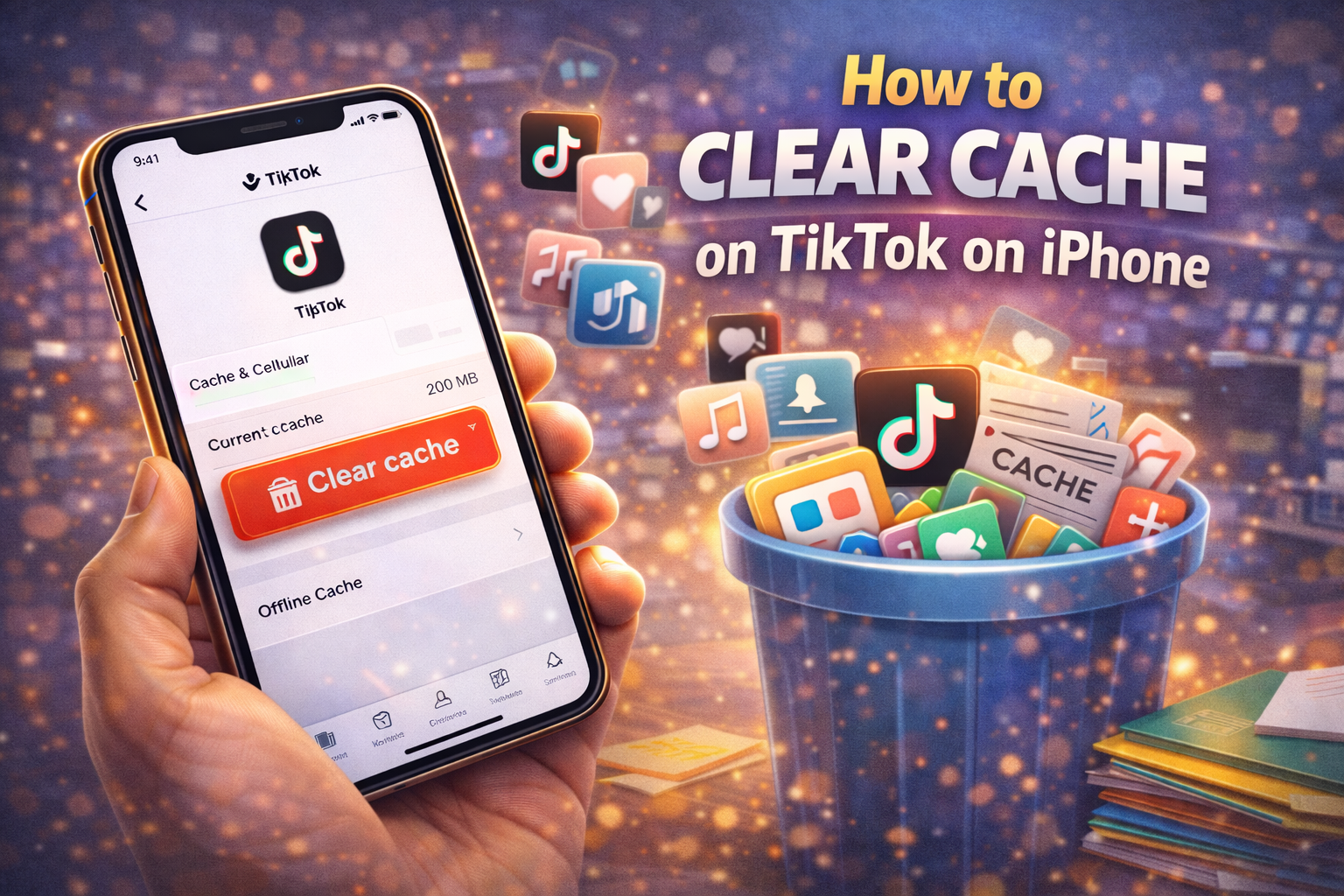
Clearing cache on TikTok is one of the simplest yet most effective fixes if the app feels slow, glitchy, or is eating up too much storage on your iPhone.
Over time, as you scroll endlessly through videos, like posts, and use filters or effects, TikTok quietly stores temporary files in the background. While this cache is meant to improve loading speeds, it can actually have the opposite effect when it builds up too much. Many iPhone users notice issues like videos not loading properly, the app freezing, or sudden crashes without realising that cached data is often the cause.
Thankfully, clearing cache on TikTok doesn’t delete your account, drafts, or uploaded videos—it simply removes unnecessary temporary files. In this guide, you’ll learn exactly how to clear cache on TikTok on iPhone, when you should do it, and why it can instantly improve app performance.
What Is TikTok Cache?
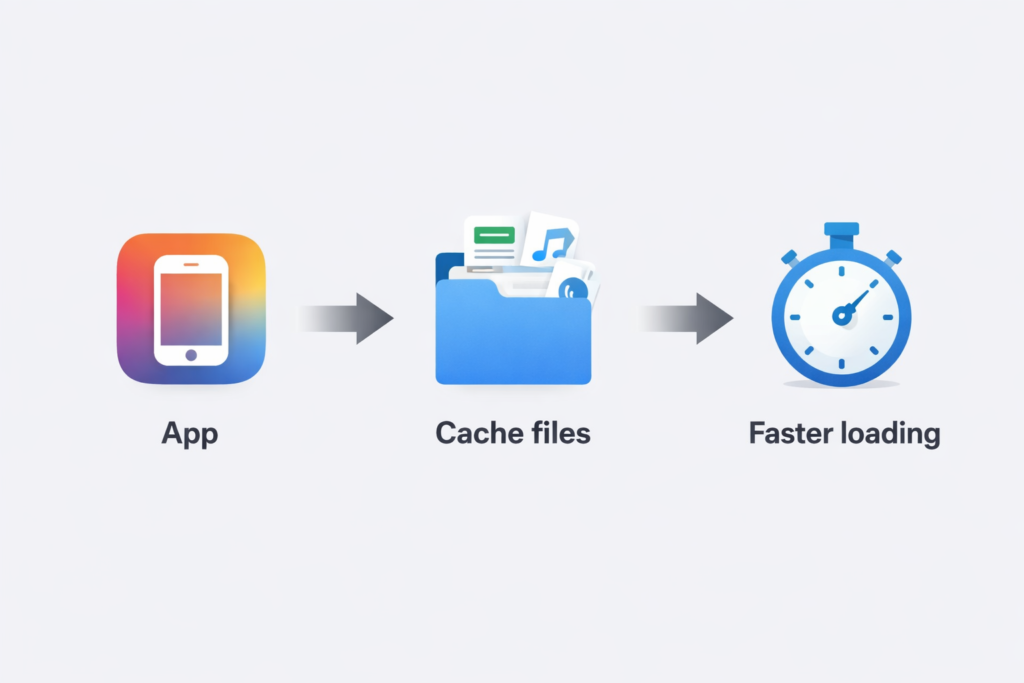
Cache is temporary data stored by apps to help them load faster. On TikTok, this includes:
- Video previews
- Filters and effects data
- Browsing history thumbnails
Over time, this cached data can pile up and cause:
- App lag
- Freezing or crashing
- Excess storage usage
Clearing the cache removes this temporary data without deleting your drafts, videos, or account.
How to Clear Cache on TikTok on iPhone
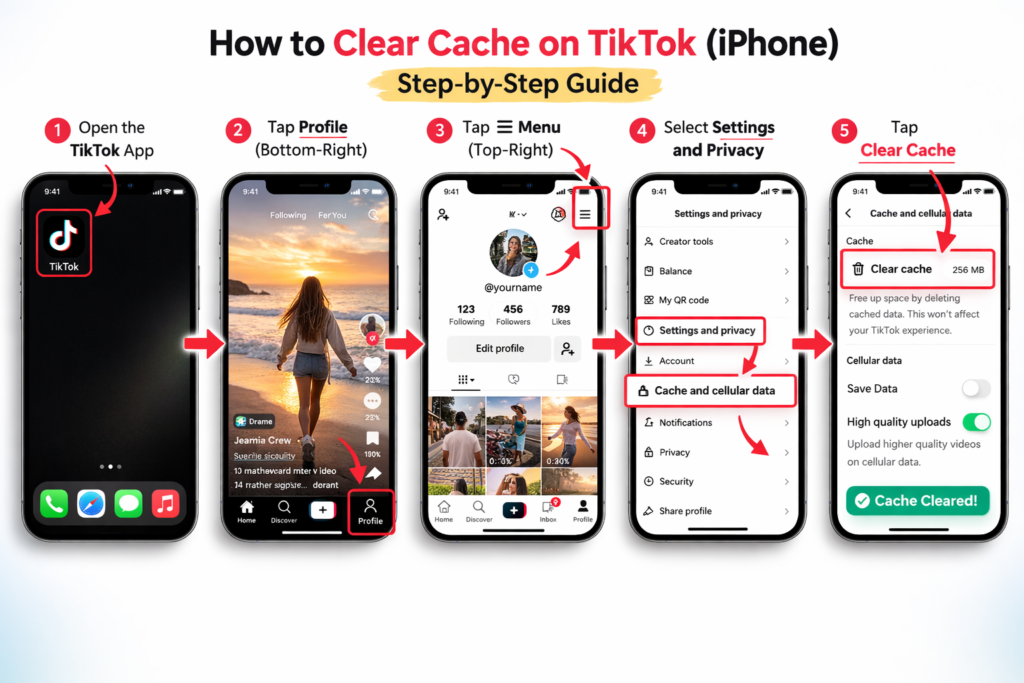
Unlike some apps, TikTok lets you clear cache directly from inside the app. Follow these steps:
Step-by-Step Instructions
- Open the TikTok app on your iPhone
- Tap Profile (bottom-right corner)
- Tap the ☰ menu (top-right corner)
- Select Settings and privacy
- Tap Cache and cellular data
- Under Cache, tap Clear cache
That’s it! ✅ Your TikTok app should now feel lighter and smoother.
Will Clearing Cache Delete Anything?
No. Clearing cache will NOT delete:
- Your drafts
- Uploaded videos
- Likes, comments, or followers
- Your account or settings
It only removes temporary files.
When Should You Clear TikTok Cache?
You should clear your TikTok cache if:
- The app is slow or lagging
- TikTok crashes frequently
- Videos won’t load properly
- TikTok is using too much iPhone storage
As a general rule, clearing cache once every 1–2 months is a good habit.
Alternative Method: Reinstall TikTok (If Problems Persist)
If clearing cache doesn’t help:
- Delete the TikTok app from your iPhone
- Restart your phone
- Reinstall TikTok from the App Store
- Log back into your account
⚠️ Warning: This will delete drafts stored locally on your device.
Does TikTok Cache Affect iPhone Storage?
Yes. TikTok cache can grow to hundreds of MBs or even several GBs if you scroll a lot. Clearing it regularly helps free up storage without sacrificing your content.
Final Thoughts
Clearing the cache on TikTok for iPhone is quick, safe, and one of the easiest ways to fix performance issues. If your app feels sluggish or bloated, this simple step can make a big difference.
Check out my other article on clearing cache on iPhone!