
Table of Contents
If your iPhone feels slower than usual, apps are acting strangely, or your storage keeps filling up for no obvious reason, cached data could be the culprit. The problem? Apple doesn’t make it very clear what cache is or how to clear it on an iPhone.
Unlike Android devices, iPhones don’t have a simple “Clear Cache” button. That leaves many users confused, frustrated, and unsure whether clearing the cache is even possible. The good news is—it is possible, and it’s easier than you think once you know where to look.
In this guide, you’ll learn what cache is, why it builds up, and exactly how to clear cache on your iPhone, whether it’s Safari, third-party apps, or system storage.
What is Cache on iPhone?
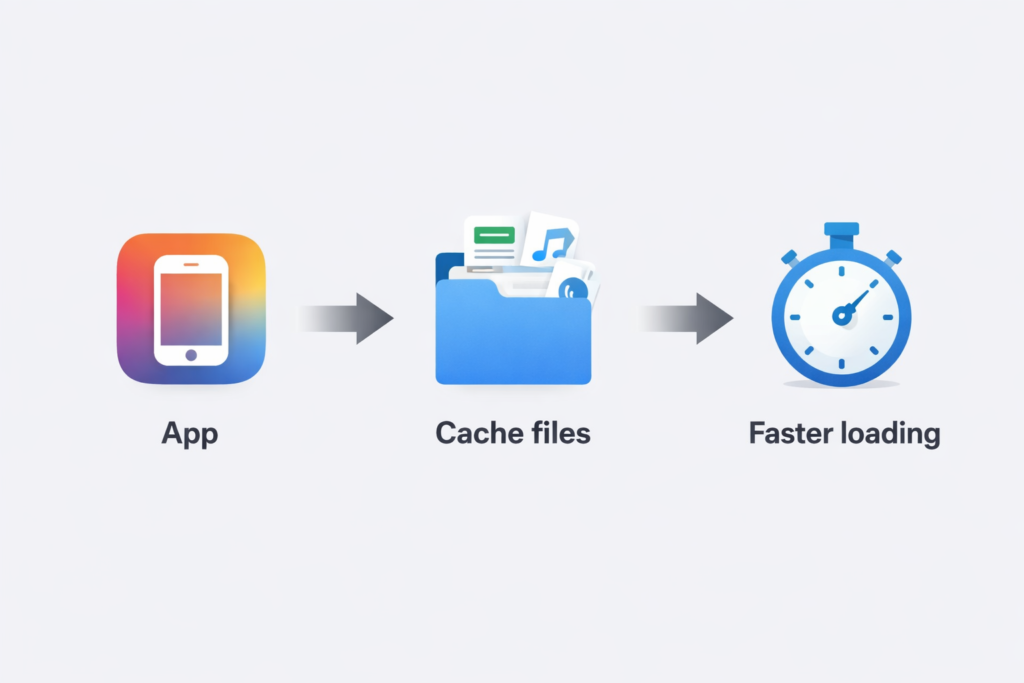
Cache is temporary data stored by apps and websites to help them load faster. For example:
- Safari saves website images and files
- Social media apps store photos and videos you’ve already viewed
- Streaming apps save thumbnails and playback data
While cache improves performance in the short term, too much cached data can cause problems over time.
Why You Should Clear Cache on iPhone
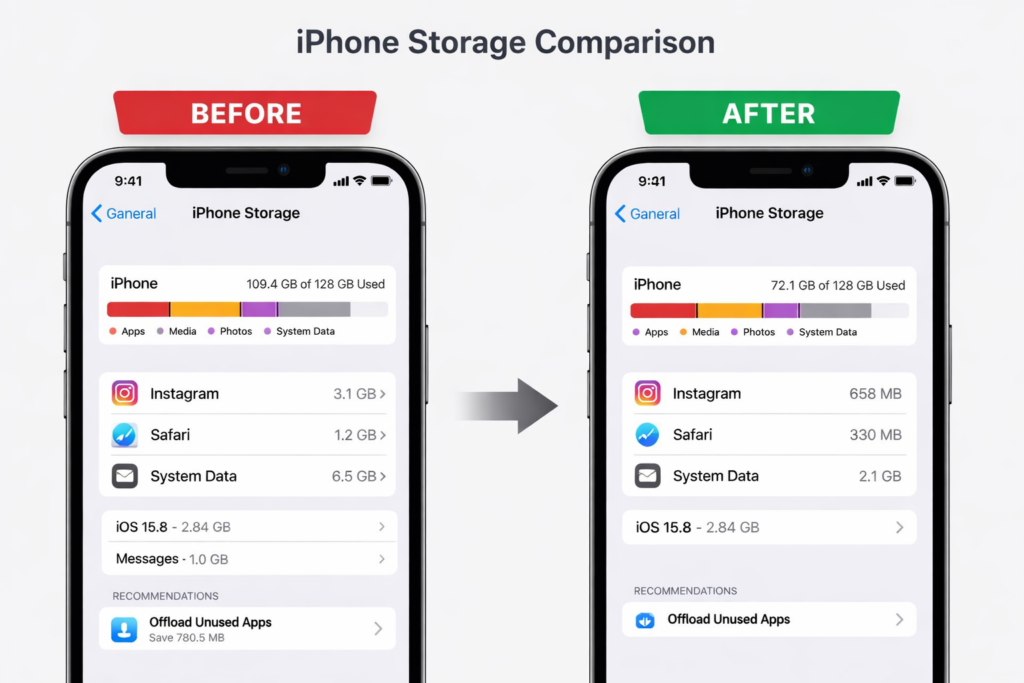
Clearing cache can help if you’re experiencing:
- Slow app performance
- Apps are crashing or freezing
- Websites are not loading properly in Safari
- “Storage Almost Full” warnings
- iPhone overheating or lagging
Clearing the cache won’t delete important personal data like photos, contacts, or messages. In most cases, it simply removes temporary files your phone no longer needs.
How to Clear Safari Cache on iPhone
Safari is one of the biggest sources of cached data on an iPhone. Clearing it can fix loading issues and free up space.
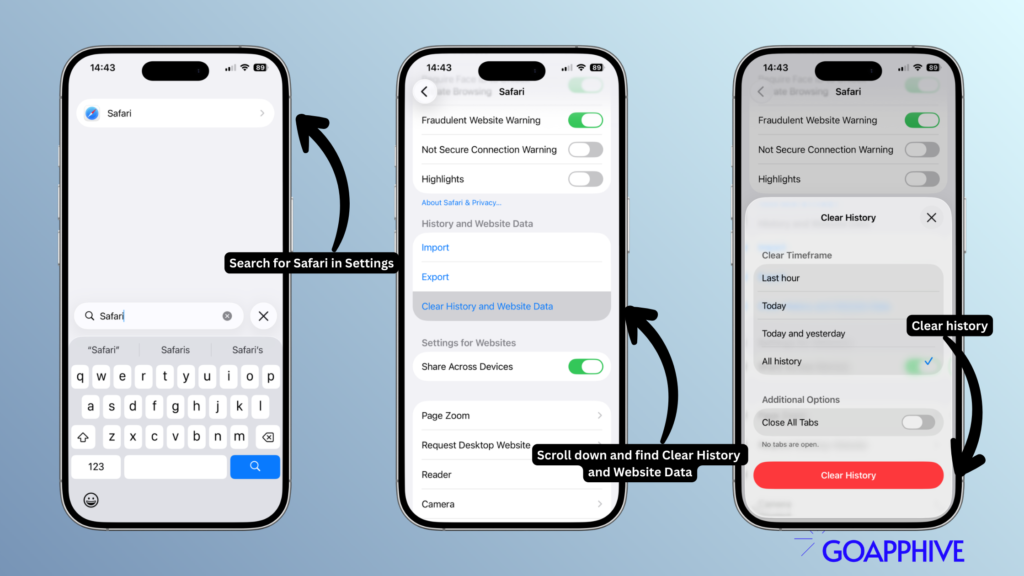
Steps to Clear Safari Cache:
- Open Settings
- Scroll down and tap Safari
- Tap Clear History and Website Data
- Confirm by tapping Clear History and Data
This removes:
- Browsing history
- Cookies
- Cached website files
👉 Note: You’ll be logged out of websites, but bookmarks will stay intact.
How to Clear Cache for Individual Apps on iPhone
Apple doesn’t allow a universal cache-clearing option for all apps, but you can manage app cache in a few ways.
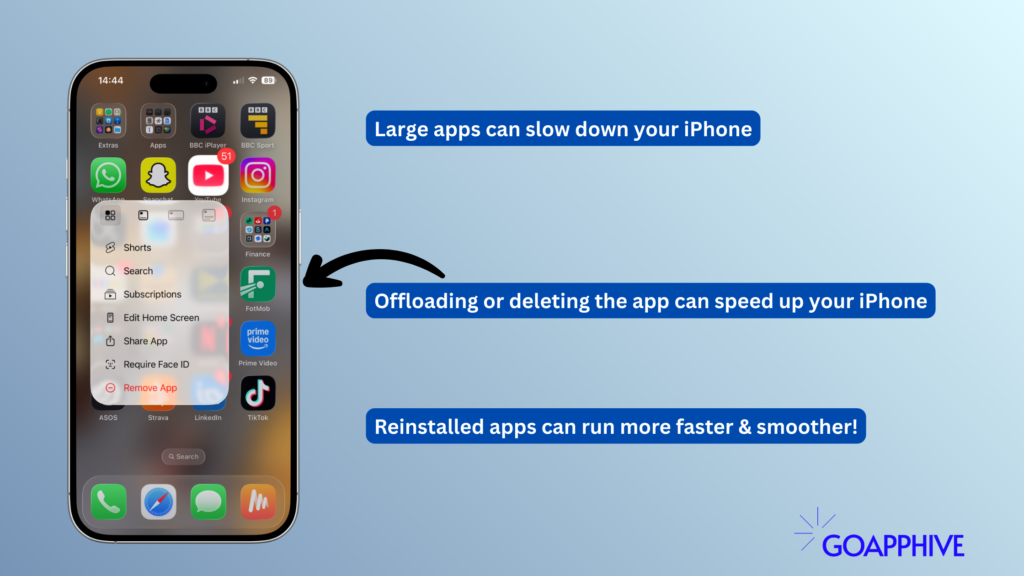
Option 1: Offload the App (Recommended)
Offloading removes the app but keeps its documents and data.
- Go to Settings > General > iPhone Storage
- Scroll and select the app
- Tap Offload App
- Tap Reinstall App
This clears cached data without losing saved files.
Option 2: Delete and Reinstall the App
This is the most effective way to clear the cache completely.
- Go to Settings > General > iPhone Storage
- Select the app
- Tap Delete App
- Reinstall it from the App Store
⚠️ Use this option only if the app doesn’t store important data locally or if you’re logged in with an account
How to Clear System Cache on iPhone
iOS manages system cache automatically, but you can refresh it using these methods:
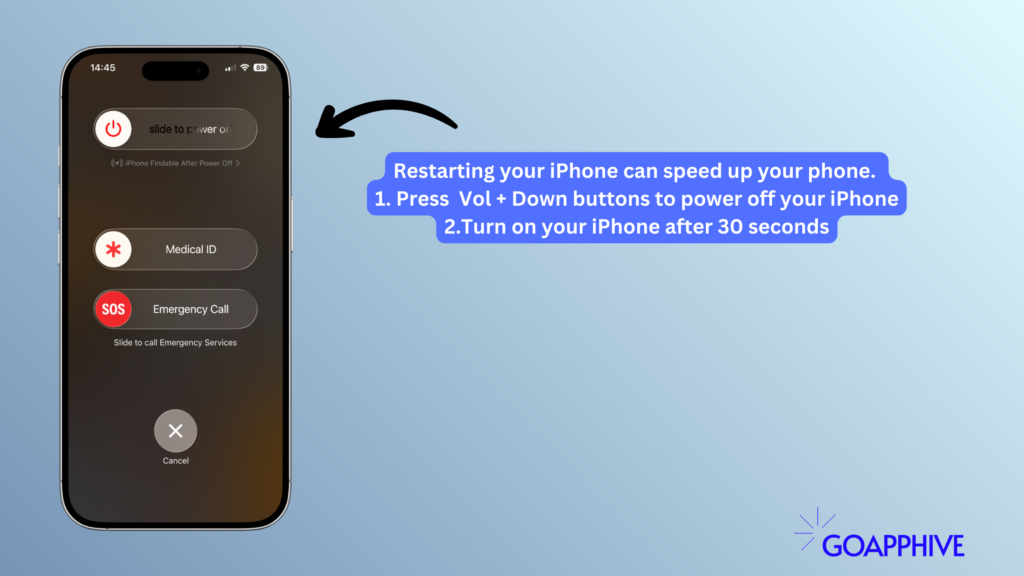
Restart Your iPhone
A simple restart clears temporary system files.
- Hold the Power + Volume button
- Slide to power off
- Turn your iPhone back on after 30 seconds
Update iOS
Apple often clears or optimises cache during updates.
- Go to Settings > General > Software Update
- Install the latest iOS version if available
How to Check What’s Using Storage on iPhone
Before clearing the cache, it helps to see what’s taking up space.
- Go to Settings > General > iPhone Storage
- Wait for the storage breakdown to load
- Review which apps are using the most space
Apps like Safari, Instagram, TikTok, YouTube, and WhatsApp often store large amounts of cached data.
How Often Should You Clear Cache on iPhone?
You don’t need to clear cache daily. A good rule of thumb:
- Every 1–2 months for regular users
- Immediately if apps start crashing or slowing down
- Before updating iOS or freeing storage
Clearing cache too often may slightly slow initial app loading, as apps rebuild cached files.
Will Clearing Cache Delete Anything Important?
In most cases, no. Clearing cache:
- Does NOT delete photos, contacts, or messages
- Does NOT remove apps permanently (unless you choose to delete them)
- MAY log you out of websites or apps
Always double-check before deleting apps that store files locally.
Common Questions About Clearing Cache on iPhone
Is there a “Clear Cache” button on iPhone?
No. Apple doesn’t provide a single button to clear cache for all apps.
Does clearing cache speed up iPhone?
Yes, especially if your phone feels sluggish or apps are misbehaving.
Can clearing cache improve battery life?
Indirectly, less background processing can reduce battery drain.
Final Thoughts
Apple keeps cache management hidden, which is why so many iPhone users struggle with storage and performance issues once you understand where cached data lives and how to remove it safely, maintaining your iPhone becomes much easier.
Whether you’re fixing slow apps, freeing up space, or just keeping your phone running smoothly, clearing cache is a simple habit that makes a big difference.
If your iPhone still feels slow after clearing cache, the next step is checking background apps, storage-heavy media, or battery health—but for most users, this guide solves the problem.
Fan of Trading Card Games? Check out my latest article on the best trading card games of 2026 by clicking the button below!